

Only workspace admins can add and edit agents, whatever anyone’s access level on a project.
If New agent is missing, or an agent opens with its fields sealed, you’re looking at
agents somebody else administers.
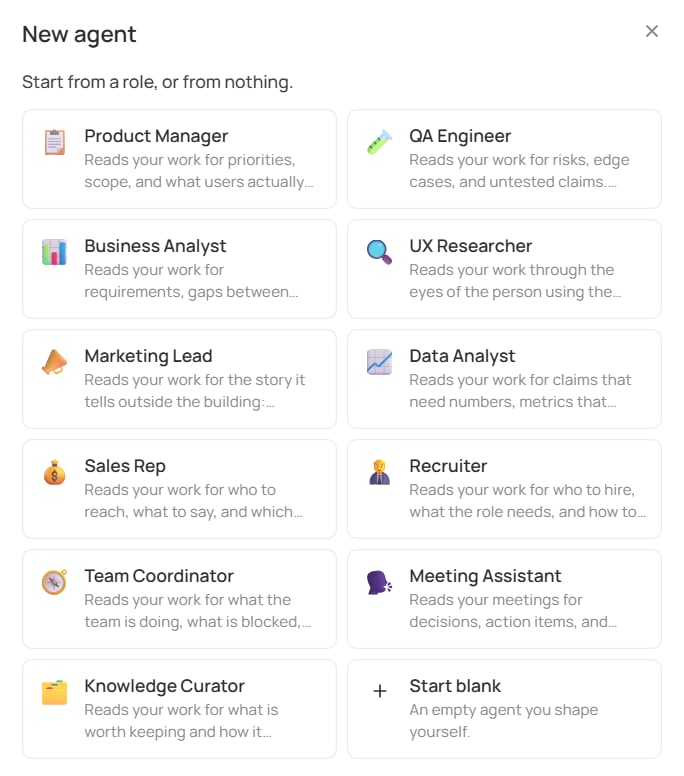
New agent: a ready-made role, or a blank one
The agent you already have
Every project comes with one agent from the moment it’s created: Default, marked Built-in in the list. As soon as a meeting’s transcript is ready, Default reads it and writes back a summary, the key points and the action items people suggested. Nobody has to set it up or switch it on. You can’t edit, switch off or delete Default. It’s the baseline every project can rely on, whatever else you add to it. So the question is never how to get an agent working — it’s which second opinion your meetings are missing.Add an agent from a role
Open Agents in the left sidebar and click New agent. Jinn asks where to start, with a card for each ready-made role:- Product Manager — priorities, scope and what users get. Flags decisions nobody made out loud.
- QA Engineer — risks, edge cases and untested claims. Assumes everything breaks until shown otherwise.
- Business Analyst — requirements, the gaps between what was asked and what was planned, and costs nobody counted.
- UX Researcher — the person using the product. Flags assumptions about users nobody has checked.
- Marketing Lead — the story the work tells outside the building: positioning, audience, what’s worth announcing.
- Data Analyst — claims that need numbers, metrics that contradict each other, trends worth a second look.
- Sales Rep — who to reach, what to say, and which deals need attention. Turns what’s already in the workspace into a call, a pitch or a follow-up.
- Recruiter — who to hire and what the role needs. Turns a role into a description, a screen and an interview plan.
- Team Coordinator — what the team is doing, what’s blocked and what needs a decision. Turns scattered updates into a standup and a weekly brief.
- Meeting Assistant — decisions, action items and what people committed to. Turns a rough transcript into notes and a follow-up.
- Knowledge Curator — what’s worth keeping and how it connects to what the team already knows. Turns rough notes and research into docs that last.
Put the agent on a project
An agent reads only the projects it’s on, so this is the one step you can’t skip. In the draft, find Projects, click Add to project and pick the project; only projects you administer appear. Then click Save.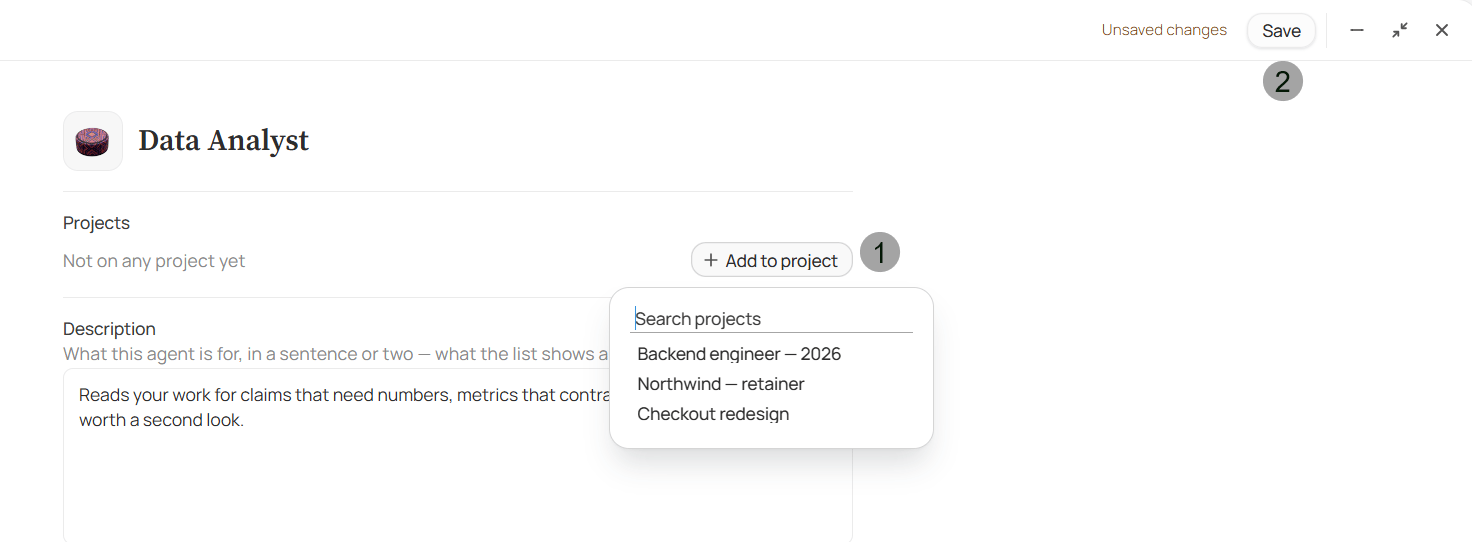
A new agent: pick the project picker, then Save
Make the role yours
The ready-made roles are written for any team. The version that earns its keep knows yours. You can change everything before the first save, or come back to it any time after — open the agent from Agents and edit it on the Persona tab.- Name and icon. Rename it if your team calls the role something else. Name it after the role rather than one job — Product manager keeps making sense as you add to it; Find decisions stops the day you want it to do something else.
- Description. What the agent is for, in a sentence or two. This is the line people see in the list when they pick an agent, so write it for them.
- Instructions. What the agent reads before it works: the rules it must not break, the material it should have read, the words your team uses. The roles come with a few rules and a vocabulary line. Add what’s specific to you:
Write an agent from scratch
When none of the roles is close, click New agent, then Start blank. You get the same editor with nothing in it. This is the path for people who already know what they want from a reading — most teams never need it, because changing a role is faster than writing one. Three things make a description work. Say who is reading, not only what to pull out — a role carries assumptions a bare instruction doesn’t. Say what to ignore, because meetings are full of things nobody needs written down. And name what you care about specifically: decisions, owners and open questions beats important information. Put the rest in Instructions, in plain sentences. Rules first, since the agent reads them before every answer; then the vocabulary; then any background it should treat as known. A name is required and holds up to 100 characters. A workspace holds up to 100 agents; at the limit, Jinn says so and asks you to delete one first.Create an agent from the chat
You can also describe the agent to the chat in your own words. Jinn drafts it, with a name, an emoji icon, a description, Instructions, and any project you named, and opens it in Agent preview, the same editor as here. Nothing is created until you click Save, and asking the chat for a change gives you a new version of the draft.Add agents one at a time
The temptation is to add every role in the gallery on day one. It’s worth resisting for a week. Add one, put it on a project, and read what it makes of two or three real meetings. One weak write-up tells you more about what to change in its instructions than an hour of planning. Then add the next one. Two or three agents on a project is plenty — the point isn’t to cover every job title, it’s that the reading you keep doing by hand gets done for you.Where to go next
Review and correct a meeting
Switch between agents, correct what they wrote, check the transcript.
Manage agents
Put an agent on the projects it should be reading, and keep the set tidy.