

Some of these settings belong to particular people. Only the workspace owner can rename the
workspace, change its picture or delete it. Only owners and admins can change properties or
clear out unused files. If a control below is missing or greyed out, it’s one of those.
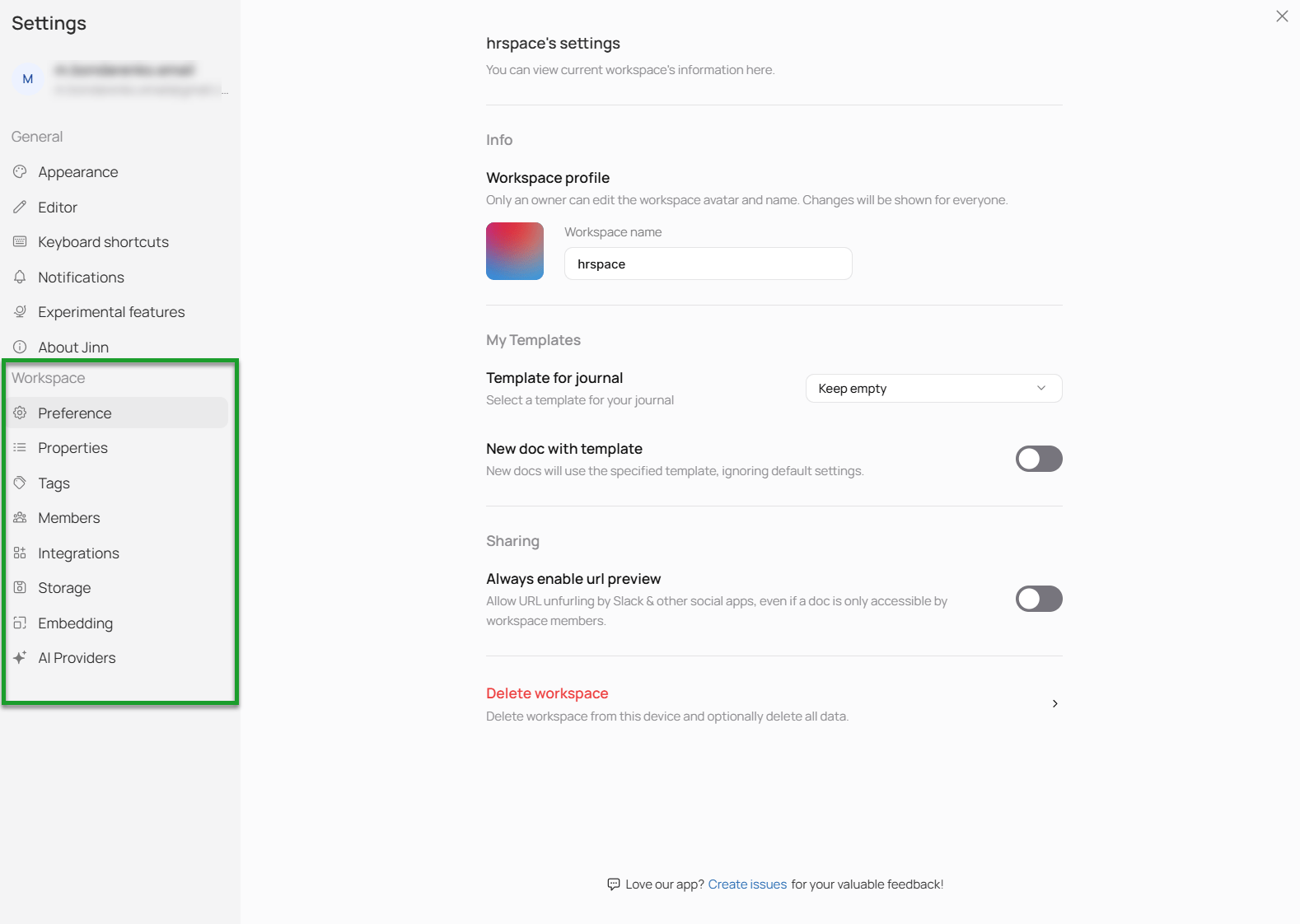
Here, you can access all Workspace settings
Rename the workspace
Preference → Workspace profile holds the workspace’s name and picture. Type the new name under Workspace name and click Save; click the picture to replace it, or remove it. Everyone in the workspace sees the change. Only the owner can do either. Everyone else sees the same fields, greyed out.Keep the tags in one place
Tags are the labels your team sorts its work by — client, hiring, Q3. Jinn has one list of them per workspace, and Tags is a place from where you can manage them:- Add a tag. Click New tag, type the name, pick a colour, and click Create. It’s available on every recording and doc in the workspace straight away.
- Rename or recolour one. Click Edit beside it, change it, and click Save. The change shows everywhere the tag is already used.
Shape the properties
Properties are the fields a recording or doc carries besides its content: a date, a number, a checkbox, a line of text. Jinn keeps one list of them for the whole workspace, so a field added here can be filled in on any recording or doc, from Add property in its panel. Open Properties to see the list and how many docs use each one.See how much storage you use
Storage shows Workspace storage: a bar with the space used so far against what the workspace has. Recordings count towards it.Here, you can manage your storage
Leave or delete the workspace
The bottom of Preference has one button, and which one depends on your place in the workspace.- Leave workspace, for everyone but the owner. Jinn asks first, because after you leave you can’t open anything in the workspace any more.
- Delete workspace, for the owner. Jinn asks you to type the workspace’s name before the button works, because this one removes every project, recording and doc in it for everyone, and it can’t be undone.
Where to go next
People and access
Who reaches a project, and what they can do.
Sign in
Create your account, get back in, and reset a password.