

Putting an agent on a project or taking it off needs Full access on that project — being a
workspace admin isn’t enough if you’re not on the project. Switching agents off, duplicating
and deleting them is for workspace admins only. If the actions below are missing or greyed
out, you don’t have the access they need.
Put an agent on more projects
You can do this from either end, and the result is the same.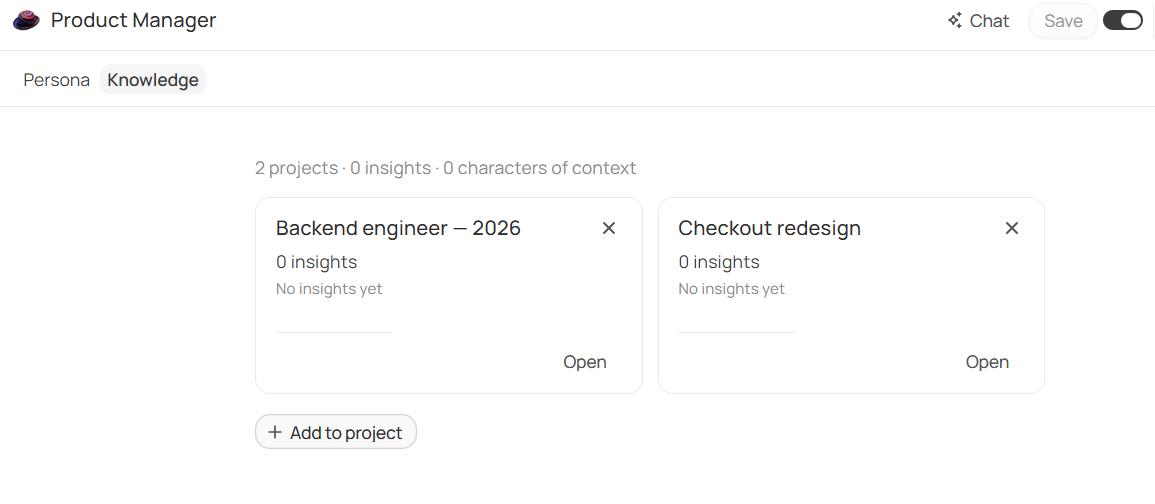
Putting an agent on a project, from the agent's side
- From the agent. Open it from Agents, go to the Knowledge tab, and click Add to project. Start typing to search. Only projects you administer appear; if there are none left, Jinn says so.
- From the project. Open the project, find Agents in the panel on the right, and click Add agent. Start typing in Search agents and pick one; it’s added at once. If they’re all already on, Jinn tells you that too.
See what an agent has done
The Knowledge tab answers the question you’d otherwise ask around the team: is this agent earning its place? At the top, how many projects it’s on and how many meetings it has written up. Under that, one row per project, with how many meetings it wrote up there, when it last worked, and a small chart of the last few weeks. Open takes you to the project. The Persona tab carries the short version above the agent’s words: total write-ups and Last worked. An agent that’s been on a project for a month and has never been asked is a sign it’s on the wrong project, or that its description doesn’t tell people when to reach for it.Take an agent off a project
Take off this project, on the agent’s Knowledge tab or from the project’s panel. The agent is no longer offered on that project’s recordings. What it already wrote stays on those recordings.Switch an agent off
Each agent has an Active switch, on its row in the list and at the top of its window. Switch it off to pause an agent without losing it: its words, its projects and its history stay. A switched-off agent can’t be chatted with or put on another project until you switch it back on.Find an agent
The Agents list has a search box, Search agents, that narrows the list by name as you type. Sort orders it by Last updated, Newest first or By name, and Created by me shows only the ones you added. Each row says which projects the agent is on — or Not on any project — and when it was added. Search from anywhere finds agents too, alongside everything else. That’s the quick way back to one you switched off.Duplicate an agent
Duplicate, in an agent’s row menu, gives you a copy with the same description and instructions. It’s the fastest way to make a variant: the same role tuned for a different project, or a second version of the instructions you want to try without losing the first.Delete an agent
Delete, in the row menu, or Delete agent under More in the agent’s window. Jinn says what it takes with it before you confirm: how many projects the agent comes off, and that you can’t get it back. Read that line. An agent on eight projects comes off all eight at once.Who sees an agent
Every agent is available to everyone in the workspace. Members who aren’t admins can open an agent and read its description and instructions, but the fields are sealed, and the window says only workspace admins can edit agents. Default and any other agent marked Built-in can’t be edited, switched off or deleted by anyone, admins included. The window says so, and so does Jinn if you try.Where to go next
Add an agent
Start from a ready-made role and make it sound like your team.
Ask a question
Ask in plain words, and check every answer at its source.