

- A write-up of every customer call, with what they tried and what you promised (step 3)
- Answers about how the product works, from the team’s own meetings and docs, with a link you can check before replying (step 4)
- A hand-over the developer can act on without asking the customer again (step 5)
1. Get into the right projects
Everything below happens inside projects. You need two:- Where customer calls go. Usually a private project for support, so calls stay with the people who should hear them.
- Where the product team works. That’s where you hand problems over and where the answers about the product live.
2. Set up recording
Calls are recorded from the Jinn desktop app. No bot joins: the audio comes from your own machine, so the customer sees the call they expected, whatever you call from.- Download the app and install it.
- Open Settings → Meetings and turn on Enable meeting notes.
- Under When meeting starts, choose Show a recording prompt.
3. Record a customer call
- When the call starts, click Start on the recording bar.
- Under Select project, pick the support project.
- When it ends, click Stop & Generate.
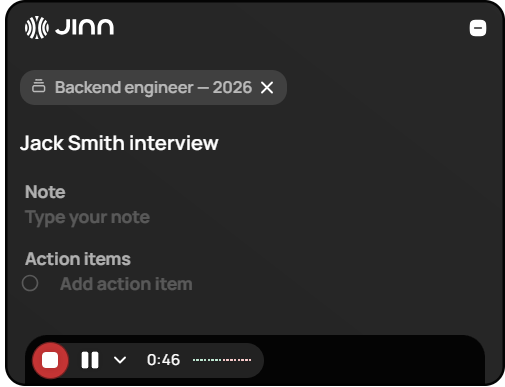
The recording bar, mid-call
4. Answer from what the team already knows
Instead of asking in a team chat how a feature works:- Open the product team’s project and click Chat.
- Ask in plain words.
- Open the link under the answer before you send anything to the customer.
/ in the message box and pick
Meeting follow-up. The chat writes the follow-up from the call.
5. Hand the problem to the product team
Every time a problem is retold, a detail goes missing. Hand over the call instead.- In the recording, open the transcript and select the passage where the customer describes the problem.
- Choose Add tag and type a tag in Find or create a tag… — billing, checkout.
- On the Comments tab, select the words in the write-up you mean and write what you need from the product team. Anyone can answer with Reply.
- If the product team should own the call, open the recording’s row menu and choose Move to project, then pick their project.
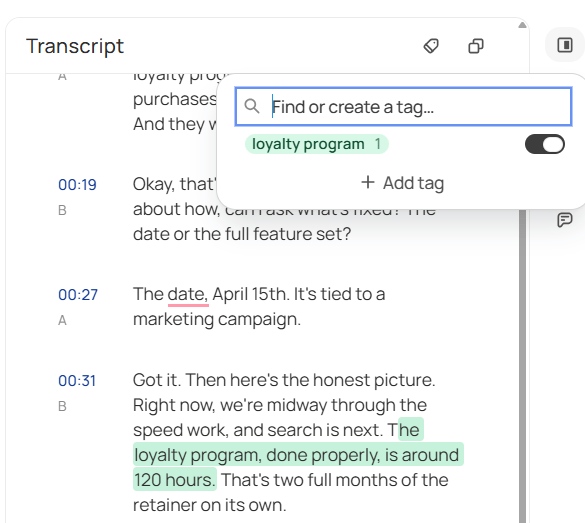
Tagging the passage where the customer describes the problem
6. Keep the answers in one place
When the same question comes in every week, write the answer down once. Knowledge Curator is the agent for it: add it to a call where the answer was given, and it turns what was said into notes worth keeping. Put the result in a doc in the support project — Add → New doc in project — and the chat answers from it next time.Where to go next
Jinn for managers
Notes for the whole team from one recording, and who owns what in one question.
Jinn for sales teams
Keep every customer call on record and write the follow-up from what was said.