

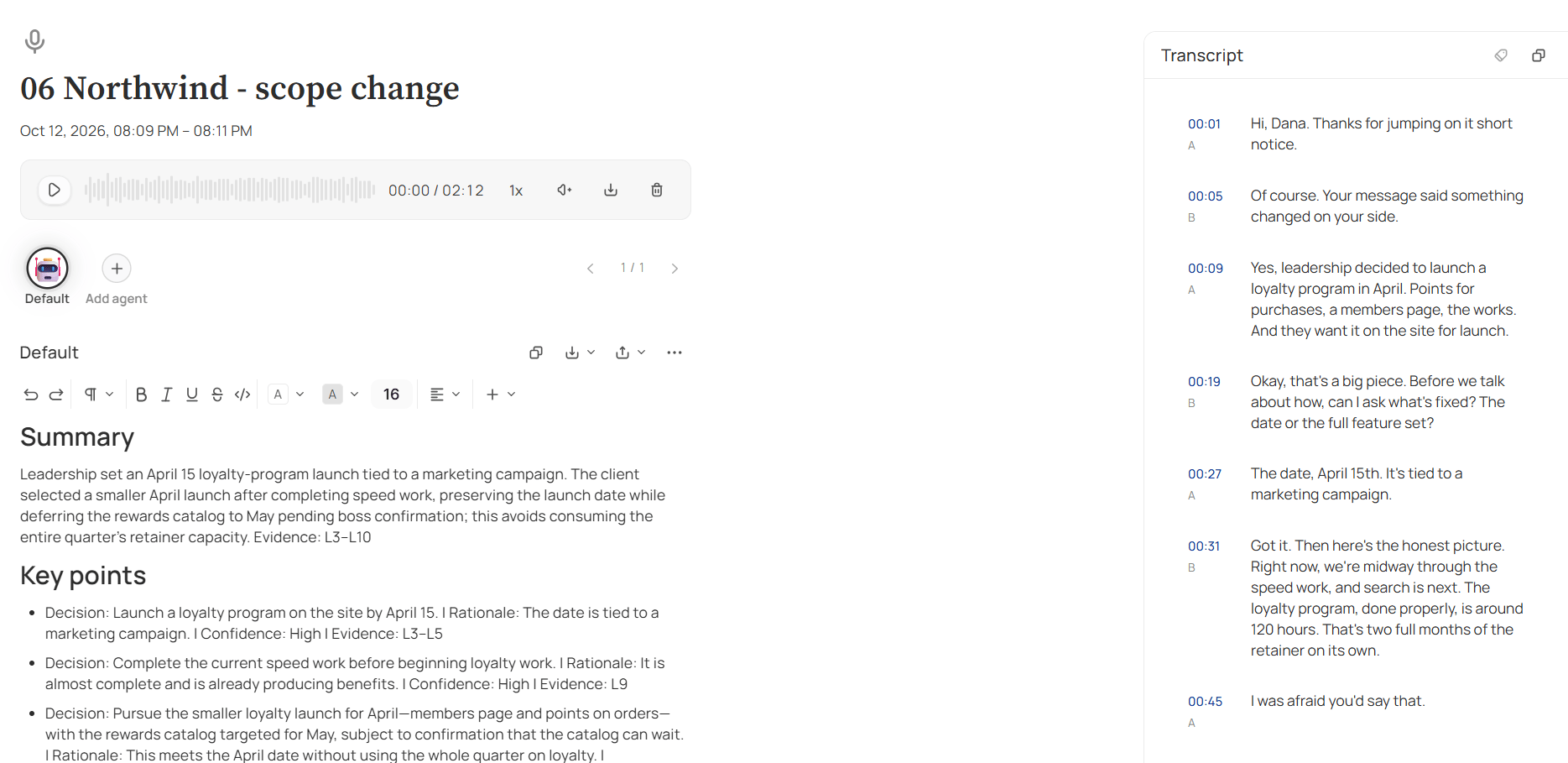
A recording: the player, the agents, Default's write-up, and the transcript beside it
Listen to the meeting
The player sits under the meeting’s title and date. Play it from anywhere on the waveform, change the speed, or turn the sound down. Download recording saves the audio to your computer, named after the meeting. The bin beside it deletes the audio and keeps everything else — what’s deleted and what stays is in where your data goes. Until there’s audio to play, the player says what’s happening instead:- Recording…, with a running clock — the meeting is still being recorded in the desktop app.
- Finishing… — the recording has stopped, and Jinn is putting the audio together on the server.
- This recording couldn’t be finished — Jinn gave up putting the audio together. The transcript says so too, with Try again; see when transcription fails.
- No audio yet — there’s no audio on this recording.
- Audio was deleted — someone deleted the audio and kept the rest of the meeting.
Switch between agents
Under the player is a row of the agents who read this meeting, Default first: each one’s icon, with its name under it. Click one to see what it wrote. The counter at the end of the row, ‹ 2 / 3 ›, steps through them with Previous agent and Next agent, and the up and down arrow keys do the same.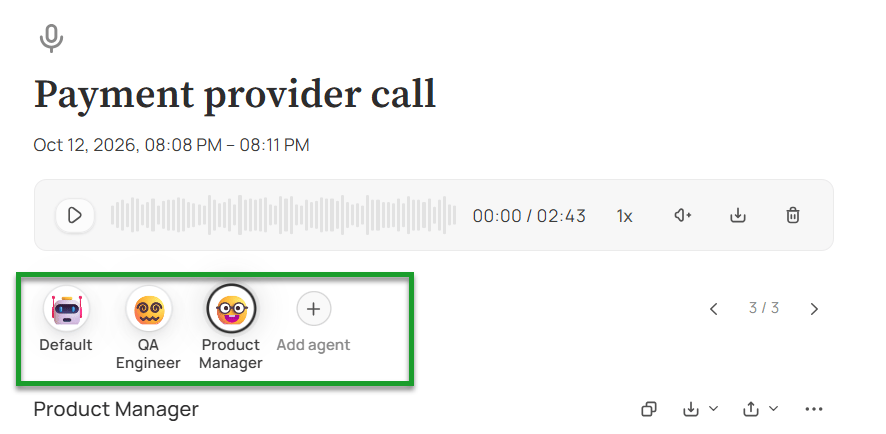
The agents who read this meeting, and Add agent
Add an agent
Every project has a built-in agent called Default. As soon as the transcript is ready, Default reads it and writes its summary without being asked. That’s the one waiting for you when you open a recording you made this morning. Every other agent reads a meeting only when you ask. Click Add agent at the end of the row and choose one: the agents already on the project come first, under In this project, and the rest of the workspace’s agents under Other workspace agents. It reads the same transcript through its own lens, joins the row, and stays there. So a meeting with one agent in the row, on a project with five, isn’t a failure — nobody has asked the other four yet. A meeting nobody has read at all says No agents yet, with + Add agent under it. If Add agent is greyed out, its tooltip says why: the meeting has no project yet, you need edit rights to change it, or only project admins can bring in an agent from outside the project. To take an agent off a meeting, open ⋯ above its text and choose Remove agent. What it wrote goes for everyone; add the agent again and it reads the meeting afresh.Correct what an agent wrote
Nothing an agent wrote is final, and none of it needs keeping as it came. What it wrote is an ordinary editable text, with the formatting toolbar above it: click anywhere and rewrite a point, delete one that isn’t real — an agent sometimes hears a suggestion as a commitment — or add what it missed. Tick an action item once it’s done. Your changes are kept as you type, and everyone who opens the meeting sees the corrected version. Version history, under ⋯, shows the earlier versions if you need one back.Regenerate a write-up
Regenerate, under ⋯, throws away what the agent wrote and has it read the transcript again from scratch. Useful after you’ve corrected the transcript, or when the agent’s instructions have improved since it last read anything.Check a write-up against the transcript
The transcript is what was said, written out in timed segments, and it’s what every agent reads. Open it from the Transcript source tab at the top of the recording. While it’s being made, the segments appear as they’re written — during the meeting too — with Loading… at the end until it’s done. If it fails, the panel says Transcription failed and why, with Try again; see what each reason means. Correct what was misheard. Click Edit segment, fix the text, and save. Names and numbers are what transcription gets wrong most often, and they’re what an agent depends on — read Anya as Anna and the wrong name lands in an action item. The transcript is also what search reads, so a corrected word is a findable word. Very long transcripts open read-only, and Jinn says so rather than letting you type into something that won’t save. An agent doesn’t pick up a corrected transcript by itself. Regenerate it when the correction matters to what it wrote. Copy takes a segment to your clipboard, for quoting what was said exactly.Fill a gap in the transcript
When Jinn can’t transcribe one stretch of a meeting, it keeps the rest and marks the hole instead of failing the whole transcript: No transcript for 12:04–12:36, with the times of the missing stretch. If you can edit the recording, Try the missing parts again sits under the transcript once it’s finished. It re-runs only the gaps, so the rest of the transcript and your corrections to it stay as they are. When the gaps are filled, Default reads the transcript again and writes its write-up afresh. Someone who can only view the recording sees the gaps but not the button.Tag the moments worth finding again
A tag on a passage marks a moment: where the client said what they really wanted, where a deadline was agreed, where someone raised the risk nobody wrote down. Select the text in the transcript, choose Add tag, then pick a tag or type a new one — Find or create a tag… does both from the same box. You can come back to every moment tagged that way, across all your meetings.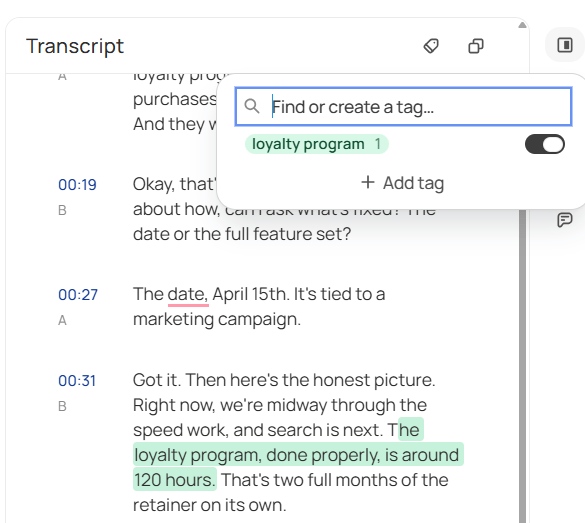
Tagging a passage in the transcript
Discuss a passage
Open the Comments tab to talk about what an agent wrote without changing it. Select the words you mean, write in the panel, and click Comment: the comment is pinned to that passage, and anyone can answer it with Reply. Where you can only read the text, the comment goes on it as a whole. Other people see a new comment the next time they open the tab.Take a write-up elsewhere
- Copy, above the agent’s text, puts the whole of it on your clipboard, ready to paste into a message or a ticket.
- Export saves it as Markdown, HTML, PDF, Word or an image.
When an agent hasn’t written anything
Three causes, in the order they’re likely.- The transcript isn’t ready. An agent reads the transcript, so it can’t start until transcription finishes. The page says Waiting for the transcript… while that’s true.
- The recording has no project. No project means no agents to read it. This is the most common cause by a distance. There’s a notification about it in your inbox, and choosing a project from there starts everything. See checking on a recording.
- The agent failed. The page says Insight generation failed and offers Try again. If it keeps failing, the cause is usually the workspace’s AI setup rather than this meeting — see How your AI is powered.
What an agent could and couldn’t see
An agent reads the transcript of the recording it’s on. It doesn’t read your other meetings, your docs, or what another agent wrote. That’s worth knowing when what it wrote seems thin. Usually the agent isn’t wrong — the conversation was: twenty minutes of scheduling produces twenty minutes’ worth of key points.Where to go next
Put a meeting to work
The five minutes that decide whether a meeting is worth anything later.
Add an agent
Start from a ready-made role and make it sound like your team.