

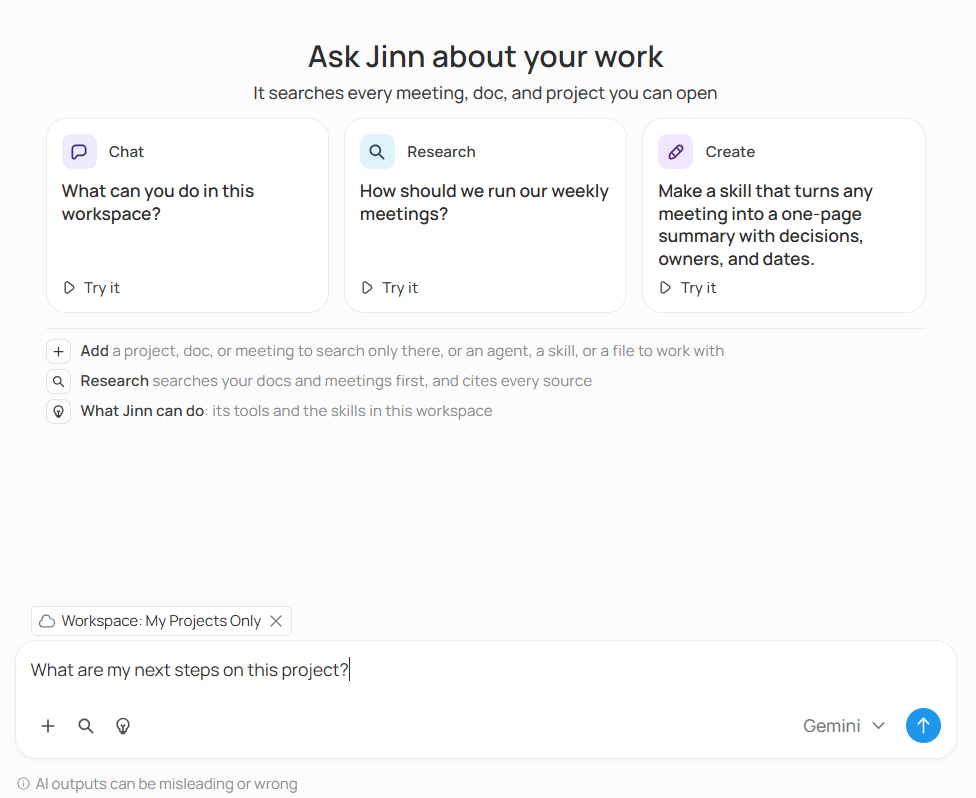
A chat that reads one project, and the question being asked of it
- A recording, open or docked over the page: that one recording.
- A project: that project.
- An agent: that agent, as a chip in the message box.
- Anything else: the whole workspace.
Start a new chat
A new chat opens on Ask Jinn about your work, and the line under it says what that covers: It searches every meeting, doc, and project you can open. The start page stays until you send your first message. A chat you come back to opens on its conversation instead. Under the heading sit starters, each with a message ready to send. Click one and Jinn sends it as yours, so you see what an answer looks like before you write your own:- Chat asks What can you do in this workspace?
- Research turns on Research and asks How should we run our weekly meetings?
- Create asks Jinn to make a skill, or a doc if you can’t make skills. It’s there only if you can create something from the chat.
Ask a question
Type your question in the message box and send it. You don’t need keywords or the name of the meeting. Say what you want to know. When the answer needs your meetings or docs, the reply shows Searching your workspace while Jinn looks. A question that doesn’t need them — rewording a paragraph, say — is answered straight away. Either way you can keep going: a follow-up question in the same chat builds on what came before. If the reply opens with a folded line called Thinking, that’s the reasoning behind the answer. It folds itself away once the answer starts, and you can open it whenever you’re curious. Chat answers a question. When you’re after the passage where a word was said, that’s search. A question that needs several searches, or the web, is a job for Research.Choose what the chat looks through
A question asked of the whole workspace gets an answer from the whole workspace. Often you want less than that: one meeting, one project, one doc. What the chat is reading shows as chips in the message box. A chat opened from a project starts with Project: and the project’s name, and one opened from a recording starts with Recording: and its title. Remove a chip to stop reading that source, or open the menu that adds sources, in the message box, to pick something else:- The whole workspace. The chip reads Workspace: All Projects.
- Your projects. Turn on My projects only and the chat reads only projects you’re a member of. The chip changes to Workspace: My Projects Only. Jinn remembers the switch for you between chats.
- A project. The menu lists the five most recently updated. Type a name to find any other.
- A recording. The chat reads its transcript and the write-ups written for it, and nothing else.
- A doc, or everything carrying a tag.
Add a file to the chat
The chat can read a file you bring in: a PDF, a text file, a CSV export, a screenshot. Open + in the message box and choose Upload files (pdf, txt, csv) or Upload images. The file sits in the message box as a chip, and when the chat reads it the reply says Read a file. A file can be up to 50 MB, and a message can carry up to nine images. A file isn’t a place to search, the way a project or a doc is. It’s material for the chat to work with, so adding one doesn’t change what else the chat looks through.Check an answer
Each reply that searched your workspace carries one search result. It says how much Jinn found, and of what kind, and lists every recording and doc it drew on, each one once.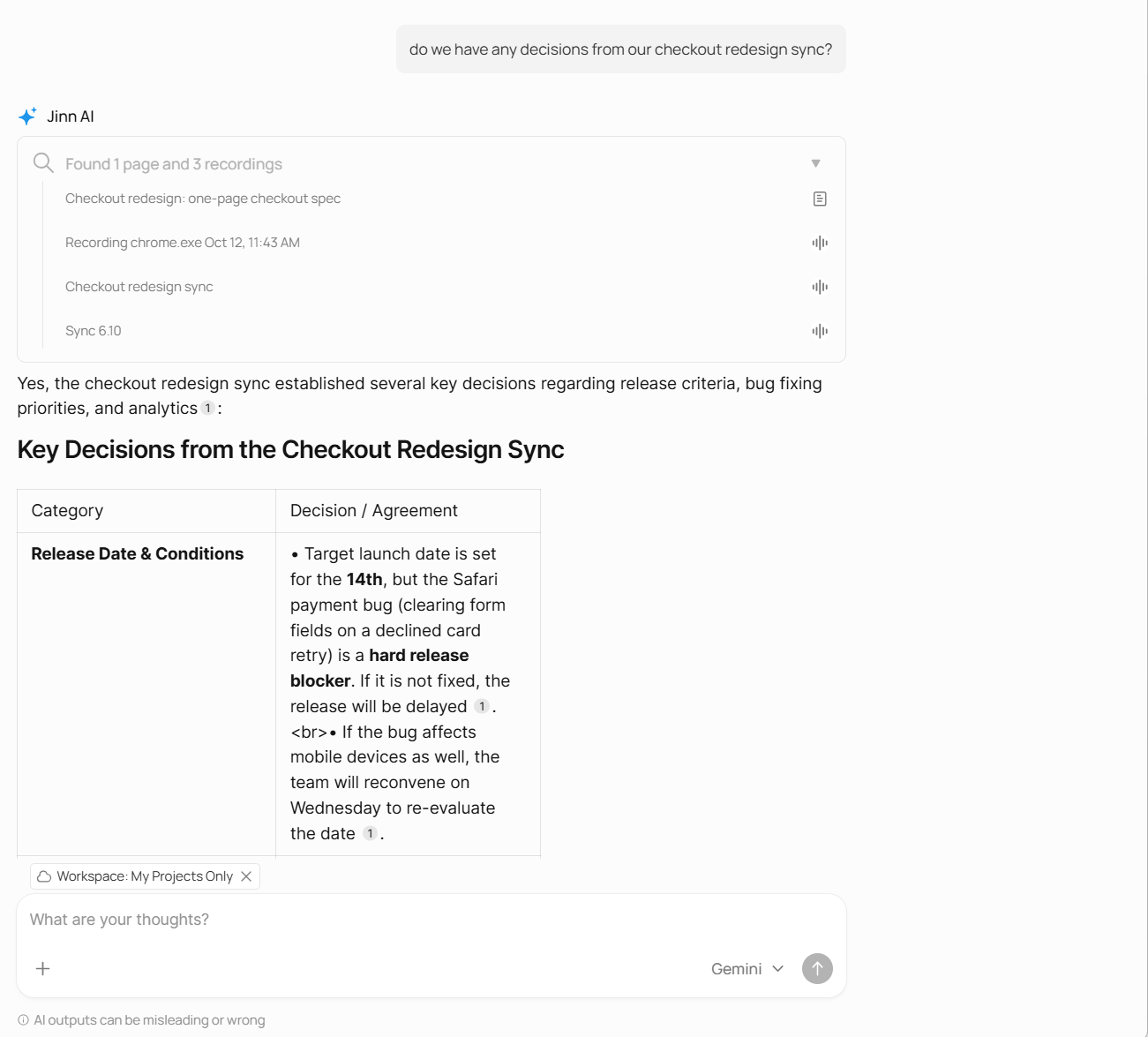
What the answer read to get there
- Click a recording and it opens, transcript and write-ups included.
- Click a doc and it opens too.
- A row named after an agent — Default’s insight, say — tells you which agent wrote what the chat read.
- A file shows by name. There’s nothing to open.
Add an agent to the chat
An agent reads work through one role’s eyes. Bring one into a chat and every answer from then on comes back the way that role would give it, shaped by the agent’s description and instructions. Pick the agent from the same menu that adds sources. It appears as a chip, Agent: and its name. Two things come with it: the agent’s voice, and what it has already written in projects you can reach, which the chat can now draw on. You can also start from the agent. Open it under Agents and click Ask Jinn in the bar at the bottom: a chat opens beside the agent with only its chip in the message box, ready for your question. That works for any agent that’s saved and switched on. A chat holds one agent at a time. Pick another and it replaces the first. Remove the chip and the chat goes back to answering plainly. Either change applies from your next message. Answers you already have aren’t rewritten. An agent isn’t a choice of what to read. Adding one doesn’t narrow the chat to a project or widen it to the workspace, so set that separately. If an agent is switched off or deleted while it’s in your chat, its chip is marked unavailable and answers stop being shaped by it. See switching an agent off.Use a skill
A skill is a piece of your team’s know-how written down once — how you run a discovery call, what goes into a follow-up email. The chat knows every skill in the workspace by name and description, and when your question fits one it uses it without being asked. To choose the skill yourself, type / in the message box and pick from the list or open + and then Skills, or pick it on the Skills tab of What Jinn can do. The skill sits in your message as a chip, and Backspace removes it whole. A message can carry up to five. A skill you pick applies to that message only. Ask a follow-up that needs it too, and pick it again.See what Jinn can do
What Jinn can do, the lightbulb button in the message box, opens a list of what the chat can do for you, with a search box over it. It’s there in any chat, not only a new one. Abilities lists the chat’s tools in two groups:- Find: Search docs, Search meetings, Read a whole doc, Read a file you attach, and Look things up online.
- Create: Write a doc, Edit a doc, Make an agent, Make a skill, and Build a mini app.
Find a past chat
The clock button at the right end of the bottom bar, next to Ask Jinn, opens your chats in this workspace, newest first. Click one and it opens on the right where you left it; the chat you’re looking at is marked. A chat keeps what it was reading when you started it. While Jinn is still answering, it won’t switch you away mid-answer: Ask Jinn and the other chats in the list wait, and say Jinn is still answering. Close the chat while it works and a dot appears on the clock button. It stays until you open that chat again, so you know an answer is waiting. For a longer look, open Home and go to the Chats tab. Your chats are there, newest first, under Today, Last 7 days, Last 30 days, and Older. Click one and the conversation opens where you left it. A chat that never got a title shows as New chat. To start fresh, click Ask Jinn, click AI in the left sidebar, New chat on the Chats tab, or New chat at the top of the AI page. Delete chat on a row removes it. Jinn asks first, because a deleted chat can’t be recovered.Where to go next
Manage agents
Put an agent on the projects it should be reading, and keep the set tidy.
Research a question
Let Jinn plan the research and cite every source, in your workspace and on the web.