

How to split your work into projects
A project is the right size when the same people should see everything in it and the same agents should read everything in it. Common shapes:- A client or account — Northwind, Acme — retainer. Every call with them from the first demo onwards, visible to the people who work with that client and nobody else
- A product area — Checkout, Mobile app, Billing. Discovery, planning and reviews for one surface, read by the same roles every time
- A squad or team — Platform team, Growth squad. Standups, retros and planning for one group of people
- A deal or a pitch — Northwind — renewal, Series A raise. The conversations around one opportunity, kept apart from the rest of the pipeline
- A hiring loop — Backend engineer — 2026. The interviews for one role, where the same questions need the same reading each time
- A launch or a quarter — Website redesign, Q1 planning. A piece of work with an end, which you can archive when it ends
Create a project
Click New project — it’s in the sidebar, and on the projects list. A name is required, a description is optional and worth the one sentence it takes: it’s what tells a new teammate what belongs here and what doesn’t. Name it after the work rather than the calendar. Then choose who can see it:- Private — only you and the people you invite.
- Open — anyone in the workspace can find it and work in it.
What’s inside a project
A project keeps the meetings, the material around them, the people and the questions you’ve asked — one tab each along the top.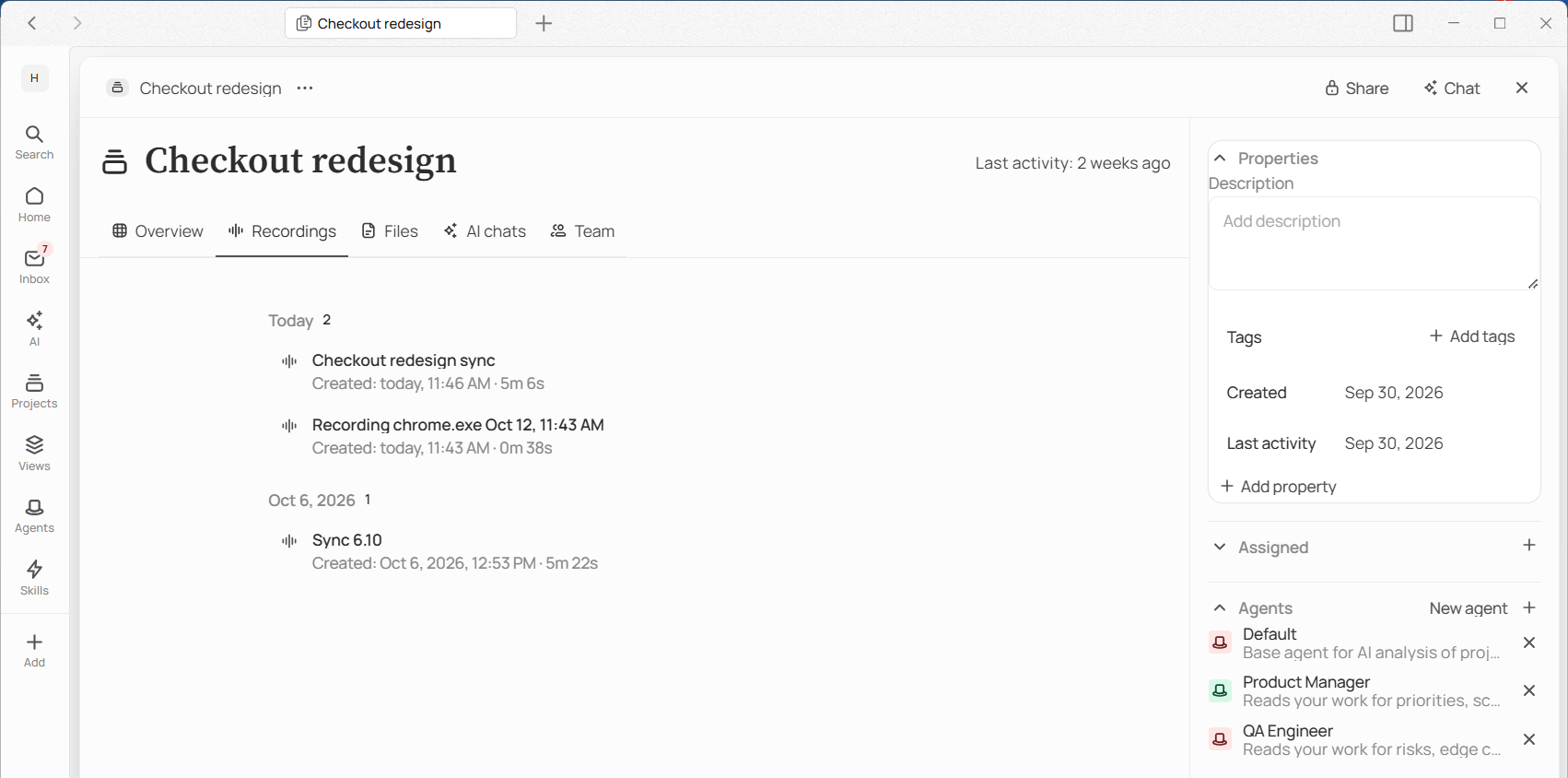
A project, open on its recordings
- Overview — the whole project in one list, newest first, so you can see what’s happened lately without hunting for it.
- Recordings — every meeting captured here, each with its transcript and what the agents made of it.
- Files — the material nobody said out loud: the client’s brief, the requirements, the spec everyone keeps referring to. Click Upload and pick the document; it’s listed by date, and from then on Jinn can quote it back to you alongside what was said in the meetings.
- Team — who can open this project and what each of them can do.
- AI chats — the questions you’ve already asked about this project’s content.
Open a meeting without leaving the project
A meeting you open from the project opens as a window on the right, and the project’s lists stay usable beside it. Full view gives the meeting the whole page, and Dock to the side puts it back; a recording that’s playing keeps playing through the switch. Close returns you to the project, on the tab you’re looking at.Decide who reads it
This is the step that turns a project from storage into something that works for you. The right-hand panel lists the agents on this project. Add agent puts another one on, and Take off this project removes one. Default reads every new meeting here by itself; the others are there for anyone to ask on a recording. See putting an agent on a project.Move something that landed in the wrong place
Recordings and docs group by date, and each row carries a menu: Open, Open in new tab, Rename, Move to project, Delete. Move to project is the one that matters. A recording in the wrong project is read by the wrong agents and searched by the wrong people. Moving it fixes that going forward — the agents on its new home don’t go back and read it on their own, so ask for their reading once it has arrived.Delete something, and know what you lose
Delete in a row behaves differently depending on what you’re deleting. A doc goes to the trash and can be restored. A recording and its audio are removed permanently. Jinn names which is which before you confirm, and that line is worth reading rather than the button. To delete the whole project, open ⋯ next to its name and click Delete Project. Jinn asks first, naming the project, and says what goes with it: Its docs and meetings go with it, for everyone in the project. You can’t get it back. Read that line before you confirm — unlike a single doc, nothing from a deleted project comes back from the trash.Where to go next
Find your way around
What the sidebar opens, what Home shows, and where the trash is.
Record a meeting
Turn meeting notes on, and run the recording bar.