

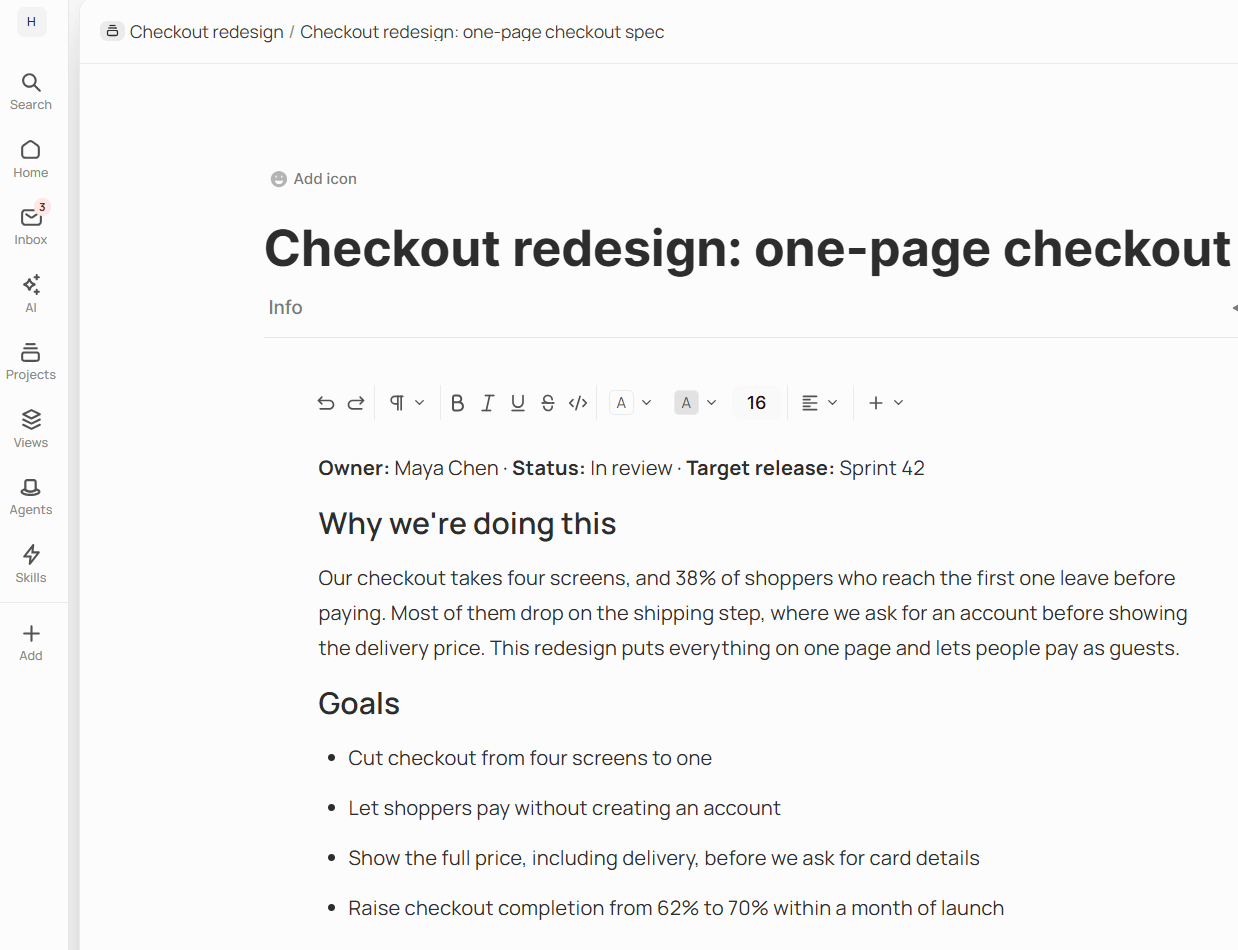
A doc open in a project
Create a doc
Click Add in the left sidebar, then New doc in project, and pick the project. Jinn opens the new doc and confirms it with a short message that names the project. The list only offers projects you can edit — creating a doc takes Can edit on the project, and people and access explains who has it. If New doc is chosen instead of New doc in project, Jinn creates a doc that belongs to no project. That’s fine for a scratch note, but nobody finds it by opening a project. Jinn puts a reminder in your Inbox for a doc like that, and you can give it a home at any point: open the menu in the doc’s header and choose Move to project. A new doc is called Untitled until you type a title over it.Create a doc from the chat
You can also ask the chat to write a doc. Jinn drafts it beside the conversation in Document preview, where you can edit it. Choose a project under Pick a project (the list offers the same projects you can edit) and click Save. Nothing is created until you do.Write with the slash menu
An empty doc shows Start with and a few shortcuts — Heading 1, Bulleted list, Table, and Template — and they disappear as soon as you type. Everywhere else, an empty line reads Type ’/’ for commands. Type/ and keep typing to
filter the list. It’s grouped into Basic blocks, Advanced blocks, and Inline, and
between them they cover:
- Text and Heading 1 to Heading 6
- Bulleted list, Numbered list, To-do list, and Toggle list, which collapses
- Quote, Callout, Divider, and Code block
- Table, Columns, and Table of contents, which builds itself from your headings
- Embed, Date, and Footnote
## makes a heading, - and 1. start lists,
[] starts a to-do, > a quote, --- a divider, and **bold** turns bold as you close it.
To point at another doc, type @ and pick it. The link carries that doc’s title and follows
it if somebody renames the doc.
Format and rearrange what you wrote
The toolbar above the text holds what you’d expect: Undo and Redo, Bold, Italic, Underline, Strikethrough, Inline code, Text color, Highlight color, Smaller text and Larger text, and Align. Insert adds a table, a callout or another block, and emoji. Select some text and the same marks appear right beside it, so you don’t travel to the top for one bold word. Turn into changes what a block is without retyping it — a paragraph into a heading, a list into a to-do list. Every block has a handle beside it. Drag it to move the block, or click it for Duplicate and Delete. Inside a table, Table options adds and removes rows and columns.Import and export
Both live in the doc’s ⋯ menu. Export is for when a doc has to leave Jinn: Export as Markdown, Export as HTML, Export as PDF or Export as Image. A long doc takes a moment, and Jinn shows Preparing export… while it works. Import reads a file into the doc: Import from Markdown or Import from HTML, up to 1 MB.Write alongside your team
There’s no save button, and nothing to remember before you close the tab — what you type is kept as you go. When a teammate has the same doc open, your edits reach them without a reload, and theirs reach you.Go back to an earlier version
Jinn keeps versions by itself. It takes one when you pause — about five minutes after the last edit — and one roughly every half hour through a long stretch of writing, so the history follows your sessions rather than your keystrokes. Open the menu in the doc’s header and choose View history version. The Version history panel opens on Current version, with earlier ones under it, newest first, each with its time and the people who edited. A run of automatic ones folds into a single row, and Show older versions loads more. Click a version to read it as it was. Nothing changes in the doc while you look, and your teammates can keep writing. To bring a version back, click Restore. Jinn asks Restore this version? and saves what you have now to the history first, labelled Before restore — so a restore is never a loss, and you can undo it by restoring that one. Anyone else in the doc sees the restored text straight away. Anyone who can open a doc can read its history. Restoring and naming versions need edit rights.Name a version worth finding again
Automatic versions are fine for getting back to yesterday. For the ones that matter — the plan as it was approved, the text before a rewrite — give the version a name: click its name in the list, type, and press Enter. Escape leaves it as it was. A name holds up to 120 characters, and you can change it the same way any time.What reads your docs
Docs aren’t only for people. Workspace search returns them alongside recordings, and the chat looks through them when it answers. You can also point the chat at one doc, or at one project, and it stays inside that. That’s the practical reason to keep a doc in a project: Jinn’s own reminder for a doc without one says it needs a project to get summarized.Delete a doc and get it back
Deleting a doc is the gentle kind of delete: it goes to the trash first. To get it back, open the workspace menu at the top of the left sidebar → Trash, and choose Restore it — the doc returns to where it was. Delete permanently removes it for good, and that can’t be undone.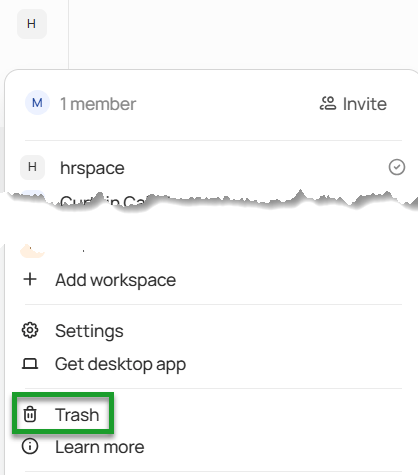
Trash, in the workspace menu
Where to go next
Use skills
Get the chat to do a job your team’s way, with built-in skills or your own.
Customer feedback
Coming soon: bugs, ideas and questions from the people using your site, filed in the project they belong to.