

- A write-up of every interview — strengths, concerns, what still needs checking — read the same way for every candidate (step 3)
- The role, the screening questions and the interview plan, written from the hiring manager’s own words (step 4)
- Candidates compared side by side in one question, with links back to the moments that decided it (step 5)
1. Make a private project for the role
A hiring loop is one project: every interview for one role, where the same questions need the same reading each time.- Click New project in the left sidebar.
- Name it after the role: Backend engineer — 2026.
- Choose Private. Only the people you add can open it — the hiring manager and the interviewers, nobody else. Search and chat don’t show its interviews to anyone outside it.
2. Set up recording
Interviews are recorded from the Jinn desktop app. No bot joins: the audio comes from your own machine, so the candidate sees the call they expected.- Download the app and install it.
- Open Settings → Meetings and turn on Enable meeting notes.
- Under When meeting starts, choose Show a recording prompt.
3. Get a write-up after every interview
- When the interview starts, click Start on the recording bar.
- Under Select project, pick the role’s project. Under Meeting name, type the candidate’s name.
- When it ends, click Stop & Generate.
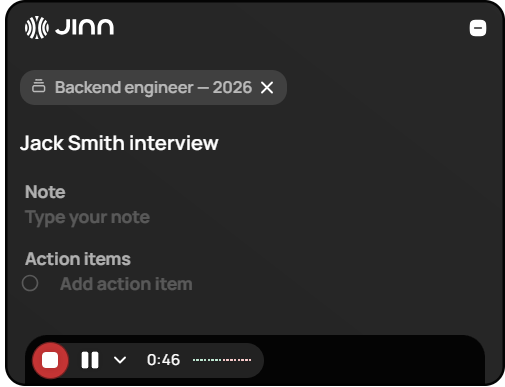
The recording bar, mid-interview
- On the recording, click Add agent at the end of the row of agents and pick Recruiter.
- Read its write-up. If it got something wrong, fix it in place — what you write is what the hiring manager reads.
4. Turn the intake call into a role
Record the call where the hiring manager explains who they need into the role’s project, the same way as an interview. Then:- Open the recording and click Chat. The chat reads only this call.
- Type
/in the message box and pick Job description. Ask for the description. - In the same chat, pick Candidate screening for the screening questions, and Interview kit for the interview plan.
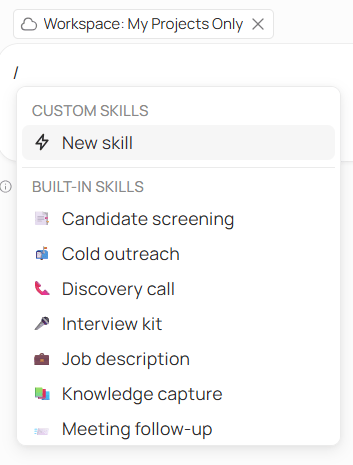
Type / to pick a skill
- Paste what you keep into a doc in the project: Add → New doc in project. From then on the chat checks every interview against it.
5. Compare the candidates
- Open the role’s project and click Chat. The chat reads every interview in it.
- Ask in plain words.
- Open the links under the answer and listen to the moments it’s based on before the debrief.
6. Share the decision with the hiring manager
- A moment worth hearing. Select the passage in the transcript, choose Add tag, and tag it — strong, concern. The tag works as a filter in search.
- A question about it. On the Comments tab, select the words in the write-up and ask. The hiring manager answers with Reply.
- Your ATS. Copy above the write-up puts it on your clipboard. There’s no automatic hand-off to other tools.
Where to go next
Jinn for sales teams
Keep every customer call on record and write the follow-up from what was said.
Jinn for QA engineers
Know what to retest after every meeting, and find the earlier report.