

Who can open a recording
A recording lives in a project, and the project decides who reaches it. In a private project, only the people added to it. Someone else in your workspace can’t find it or open it. In an open project, anyone in the workspace can. That’s what open means, and it’s worth choosing deliberately for anything you’d rather colleagues didn’t come across. A recording that hasn’t been given a project yet is reachable by whoever made it. See people and access.Whose AI reads it
Transcribing and analysing a meeting send its content to an AI provider. Which account that provider bills is your workspace’s choice, under Settings → AI Providers:- On Jinn credits, the work runs on Jinn’s own provider accounts.
- On Only my own keys, it runs on accounts you control, and a provider without an active key is unavailable rather than quietly substituted.
- On My keys, with Jinn credits as backup, yours go first and Jinn’s cover the gaps.
What Jinn does with the keys you add
A provider key is encrypted when you save it, and it can’t be read back afterwards — not in the interface and not by support. Jinn shows you a key’s state and when it was last checked, never the key. If your instance can’t store keys safely, Jinn says so rather than pretending: an installation without stable encryption falls back to Jinn credits, and reports that it has.Keep Jinn out of your screen share
If you present during meetings, two settings stop Jinn appearing in what everyone else sees: Hide recording bar when sharing and Hide main window when sharing. Both are off until you turn them on. Neither works on Linux, where the system offers no way to hide a window from capture. macOS also asks separately before Jinn can use your microphone or capture system audio, and Jinn can’t record until you’ve granted both. You can withdraw either in macOS settings at any time.What each kind of delete removes
- Delete audio, on a recording — takes the audio and leaves everything else: the transcript and the write-ups, the tags. Use it once you’ve got what you need from a meeting and would rather not keep hours of conversation lying around. It can’t be undone, so if you want a copy of your own first, click Download recording on the player.
- Delete recording, from a list — takes the recording and its audio, permanently. The transcript and the write-ups go with it.
- Delete, on a doc — the gentle one: the doc goes to the trash and can be restored.
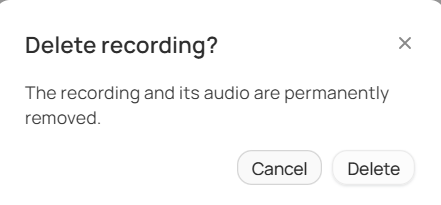
The line that says which kind of delete this is
Where to go next
Sign in
Create your account, get back in, and reset a password.
Troubleshooting
Find the page that fixes what you’re seeing.