

Anyone in the workspace can use every skill. Only workspace admins can add, edit and delete
custom skills. If New skill and Edit are missing, you’re looking at skills somebody
else looks after.
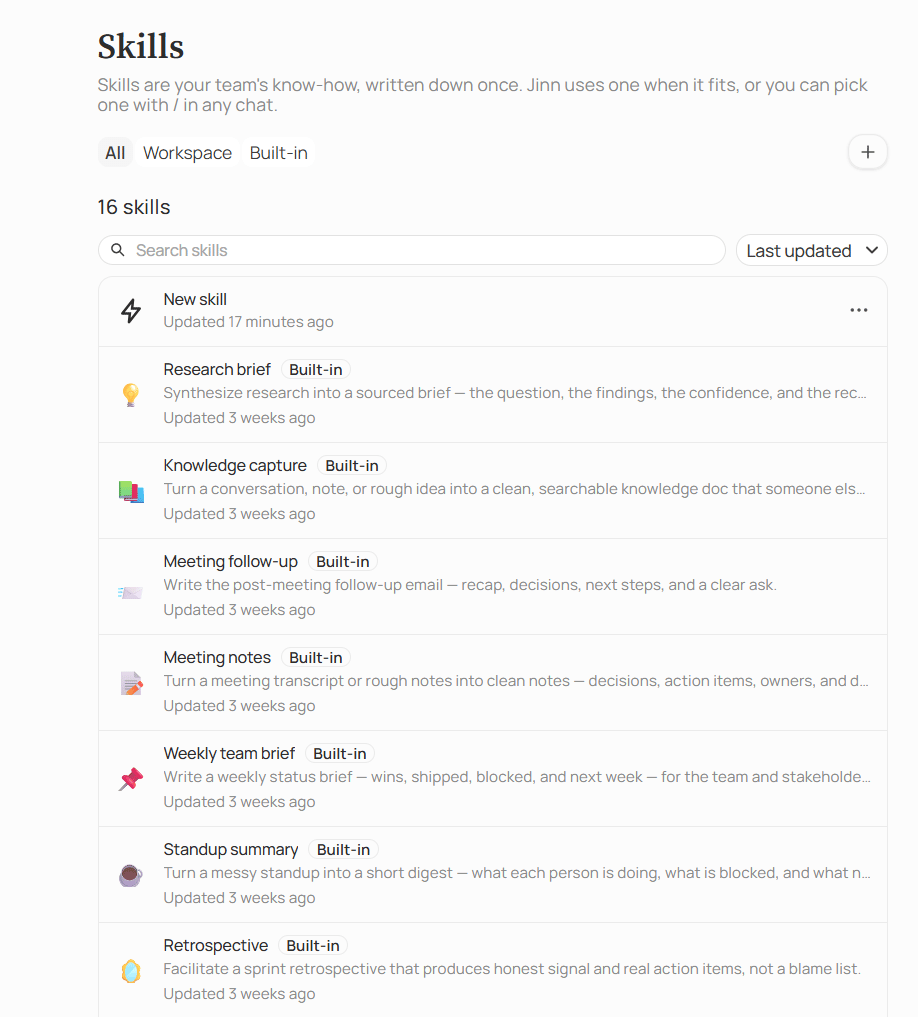
The Skills list, with the built-in skills Jinn ships
The skills you already have
Open Skills in the left sidebar. Every workspace starts with fifteen skills marked Built-in:
Nobody has to set them up or switch them on. Open one to read what it asks for — its steps,
its rules and what a good result looks like — so you know what you’ll get before you use it.
Nobody can change or delete a built-in skill, admins included. They’re the baseline every
workspace can rely on.
So the question is rarely how to get a skill working — it’s which job your team keeps
explaining to the chat from scratch.
Use a skill in a chat
You don’t have to do anything. The chat knows every skill’s name and description, and when a question fits one it loads the skill before answering. Ask draft the follow-up for today’s call with the payment provider and it reaches for Meeting follow-up skill by itself. To make sure a particular skill is used, pick it yourself. Type / in the message box and choose from the list: your team’s own under Custom skills, the ones Jinn ships under Built-in skills. Hover over one to see what it’s for. Or open + in the message box and then Skills. Or click What Jinn can do in the message box, open the Skills tab and click the skill.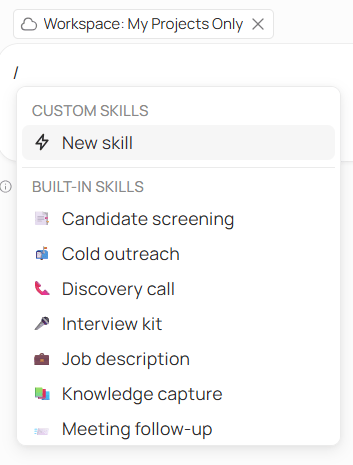
Type / to pick a skill
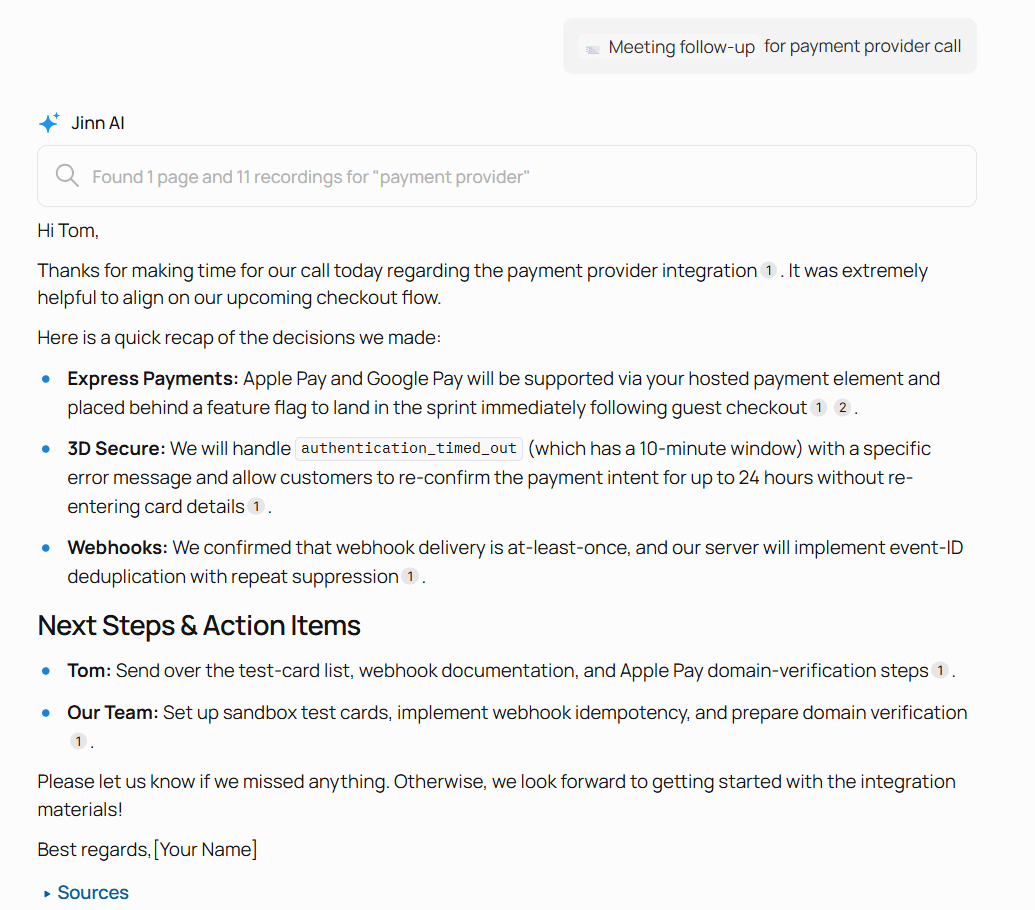
Meeting follow-up, picked by hand, writing from the call's recordings
Add a custom skill
When a built-in skill is close but your team does the job differently, or no skill covers it at all, write your own.- Open Skills and click New skill (+ at the top of the list). Jinn creates a skill called New skill and opens it straight away — there’s no form to fill in first.
- Click the name in the window’s top bar and type the real one. Name it after the job, the way people will look for it when they type /: Client follow-up, not Sales process v2.
- Fill in Description: what the skill is for and when to use it, in one line. The chat reads this to decide whether the skill fits a question, and it sees roughly the first 150 characters, so put what matters there.
- Click Edit on the main text, write the instructions in plain markdown — the steps, the order, the rules, what a good result looks like — then click Done to see it formatted.
- Click Save.
Add files and folders
A skill can carry reference material besides its main text: a template, a checklist, examples of the real thing. Use Add file or Add folder from the ⋯ menu in the skill’s bar, or from its tree. A new file opens ready to type, and it needs a name before it can save. Keep each file to one thing — one template, one checklist, one example. The chat opens a file only when it needs it, by name, so a skill can carry a lot without slowing every answer down. Very long files are cut short when the chat reads them, and the chat is told so.Create a skill from the chat
You can also describe the job to the chat and let Jinn write the skill. It drafts a name, an emoji icon, a description and the main text, and opens them in Skill preview, where you can edit anything and pick another icon. Nothing is created until you click Save, and asking the chat for a change gives you a new version of the draft.Keep the list tidy
The tabs at the top of Skills keep the two kinds apart: All, Workspace for your team’s own, and Built-in. The list has search and sorting — Last updated, Newest first and By name. Share in a skill’s window copies its link, for pointing a colleague at it.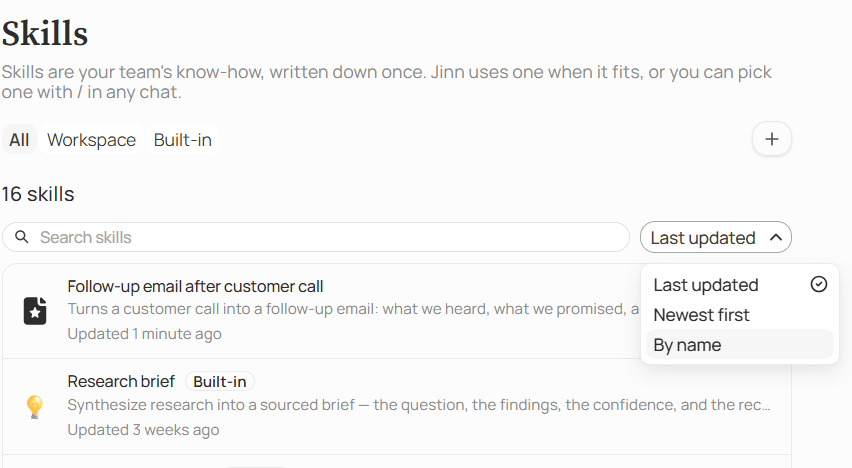
The tabs, search and sorting on the Skills list
Skills and agents
A skill isn’t tied to an agent. Every chat can use every skill, including a chat with an agent in it. The two do different jobs: an agent’s Instructions say how it reads and thinks, and a skill holds how a job gets done and the material it needs.Where to go next
Search your workspace
Get a conversation back months later.
Docs
Create a doc, write in the editor, restore an earlier version.