

- Notes for the whole team from one recording — a summary, the blockers, who took what on (step 3)
- Owners and deadlines in one question, across one project or all of yours, with a link to where each was agreed (step 4)
- The standup and the weekly brief written from what was said, not from memory (step 5)
1. Get into your team’s projects
Everything below happens inside projects: usually one per team, product area or client. Ask whoever has Full access on each to add you with Can edit access rights. If you’re starting a new one, click New project in the sidebar, name it, and choose Private or Open.2. Set up recording
Meetings are recorded from the Jinn desktop app. No bot joins the call: the audio comes from your own machine, so it works with whatever you call from.- Download the app and install it.
- Open Settings → Meetings and turn on Enable meeting notes.
- Under When meeting starts, choose Show a recording prompt. Jinn notices a meeting and asks before it records.
3. Get notes for the team after a meeting
- When the meeting starts, click Start on the recording bar.
- Under Select project, pick the team’s project.
- When it ends, click Stop & Generate. Jinn writes the transcript and opens the recording.
- On the recording, click Add agent at the end of the row of agents.
-
Pick the agent:
- Team Coordinator — for the people and the delivery: what everyone is doing, what’s blocked and what needs a decision.
- Product Manager — for the product: priorities, scope and what users get. It flags decisions nobody made out loud.
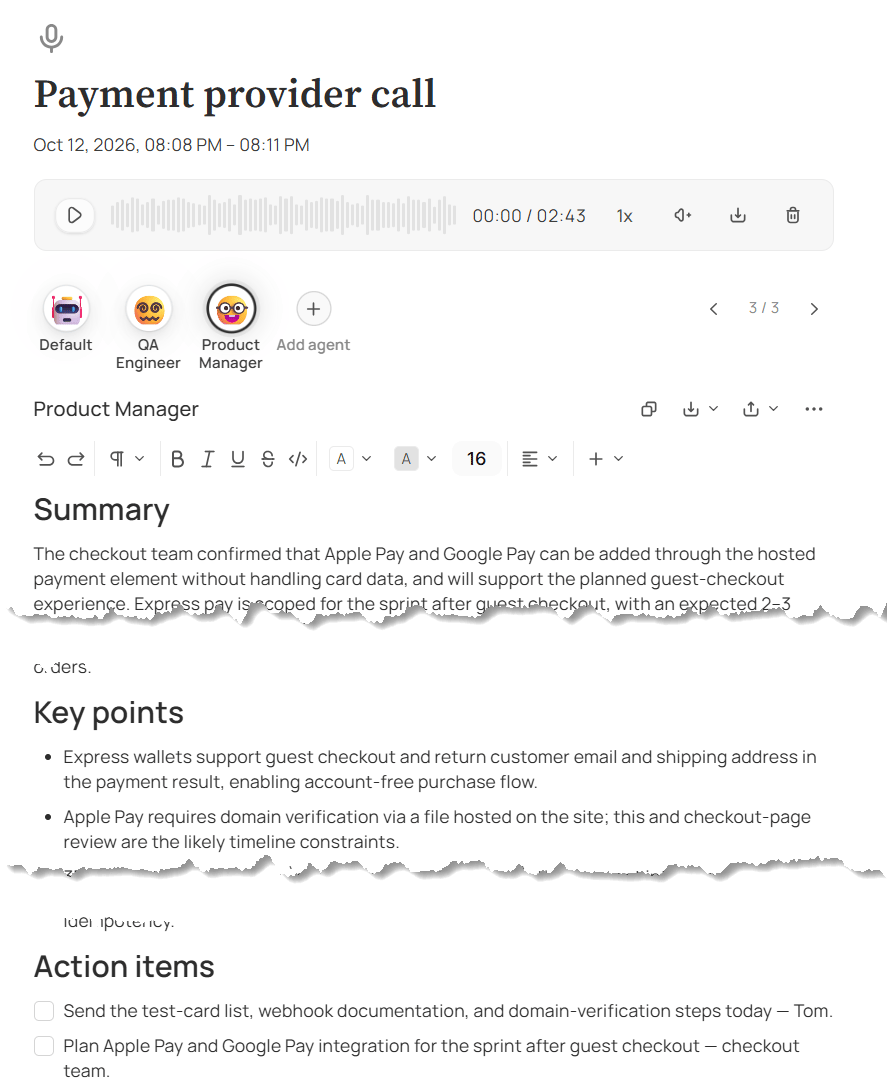
What one meeting comes back as
4. Ask who owns what
Instead of five messages to find out who owns the launch:-
Choose where to ask:
- One project — open it and click Chat
- The whole workspace — click AI in the left sidebar
- Ask in plain words.
- Before you hold anyone to a date, open the link under the answer and check where it was agreed.
5. Write the weekly brief
Recurring write-ups don’t need a prompt from scratch. Jinn ships built-in skills for them.- Open the project and click Chat.
- Type
/in the message box and pick Weekly team brief, Standup summary or Meeting follow-up. - Say what the brief is for, and send.
6. Check what’s waiting on you
- Inbox, in the left sidebar, collects what needs a person: a recording that still needs a project, an agent that failed to write, a doc with no project. See checking a recording.
- Action items go into your tracker by copy and paste: Copy above a write-up takes the whole of it. There’s no automatic hand-off to a tracker.
Where to go next
Jinn for founders
One workspace instead of five tools, and every meeting without going.
Jinn for support teams
Keep customer calls on record and hand problems over in one piece.