

- A retest list after every planning call, including the calls you weren’t on — what changed, what it touches, what to test again (step 3)
- Expected behaviour in one question, with a link to the spec or the meeting where it was decided, instead of reading three docs and a transcript (step 5)
- The earlier report in seconds, when you’re sure someone raised this bug before (step 6)
1. Get into your team’s project
Everything below happens inside a project: the one where your team’s planning calls and specs land.- Ask whoever has Full access on that project to add you.
- Ask for Can edit access rights. Can view is enough to read, but adding an agent to a meeting, tagging a passage and creating a doc all need edit rights.
2. Put the spec in the project
The chat answers from what’s in the project, so the spec has to be there too.- Click Add in the left sidebar, then New doc in project, and pick the project.
- Write the spec, or bring in one you already have: open the doc’s ⋯ menu and choose Import from Markdown or Import from HTML. The file can be up to 1 MB.
- Type
@to link the docs the spec depends on.
3. Get the retest list after a meeting
Every recorded meeting gets a write-up from AI agents — each one reads the meeting through a particular role. One of them, Default, is built into every project and writes a summary and the action items on its own, without anyone asking. For the retest list you need a different agent, QA Engineer. It reads the same meeting the way a tester would: risks, edge cases, claims nobody has checked. Unlike Default, it starts only when you ask, so after any call that changes scope:- Open the project and go to Recordings.
- Open the meeting.
- Click Add agent at the end of the row of agents, and pick QA Engineer.
- Read its write-up: what changed, what it touches, and what to test again.
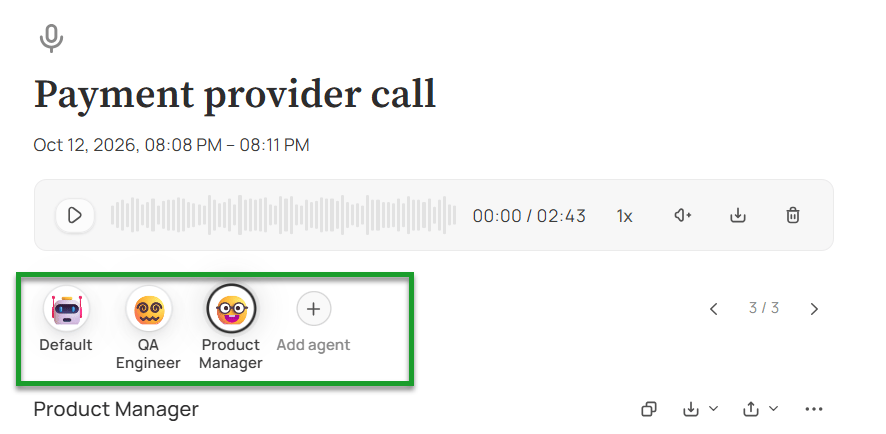
One meeting, read by Default, a QA engineer and a product manager
4. Mark the passages you’ll test against
A tag on a passage marks the moment the acceptance conditions were agreed, so you don’t hunt for it before the next regression run.- In the recording, open the transcript and select the passage.
- Choose Add tag.
- Type a tag in Find or create a tag… — checkout, release 2.4 — or pick one that exists.
5. Check how a feature should behave
Instead of reading three specs and an hour of transcript:- Open the project and click Chat. The chat starts on that project.
- Optional: in the menu that adds sources, pick QA Engineer. It shows as a chip, Agent: and its name, and answers come back with the risks next to the rule.
- Ask in plain words.
- Before you write the test case, open the link under the answer. If it came from an old draft, you’ll see it in a click.
6. Find an earlier report
When you’re sure someone reported this before:- Press ⌘K from anywhere.
- Type what the problem looks like, in your own words. Search finds a passage by what was said, not only by the exact words.
- If your team tags passages, narrow the search to the tag.
Where to go next
Jinn for recruiters
Keep every interview on record and compare candidates on the same terms.
Jinn for developers
Get the decisions from calls you skipped, and the why behind the code.