

Create your account
Open Jinn and you land on Welcome to Jinn, under it Sign in or create an account.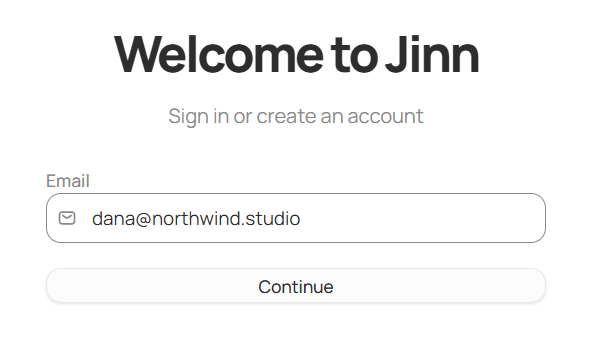
One screen for both signing in and signing up
1
Enter your email
Type the address you want the account under and click Continue. A work address keeps
your meetings where your colleagues can be invited to them. A temporary address from a
throwaway-mail service is refused with Temporary email addresses cannot be used to sign up.
Please use your regular email address. If you typed a comma by mistake, Jinn suggests the
address it thinks you meant.
2
Enter the code we sent
Jinn emails you a six-digit code and the screen changes to Check your inbox. Type the
code and you’re in, or click Sign in with a magic link in the same email. Both work for
30 minutes. If nothing arrives, check spam, then use Resend code — it’s available again
after a short countdown.
Set up your first workspace
A new account goes through a few full-page steps. Each one can be finished later, and you can change everything afterwards in Settings.- What should we call you? Type Your name, add a photo if you like, and click Continue. Your teammates see both on invites, comments and meetings.
- Join a workspace, if someone has already invited you. Click Join next to it. To start your own instead, click Create my own workspace.
- Create a workspace. Type a Workspace name — your team or company is the usual choice — and click Create workspace. When is ready appears, click Set up my workspace.
- Invite your team, if it’s your workspace. Send invitations by email, copy an Invite link, or upload a list with Import CSV. I’ll do this later skips the step.
- Add your AI keys, if your workspace runs on its own keys. Skip for now leaves it for later — see How your AI is powered.
Sign in again
The same screen, and what it asks for depends on what the account has:- With a password — the screen greets you with Welcome back and asks for it. Show password beside the field lets you check what you typed, and Hide password masks it again.
- Without one, or when you’d rather not type it — Email a sign-in link under Trouble signing in? sends the code instead. On the password screen the same escape hatch reads sign in with password in reverse: both routes reach the same account.
Reset a forgotten password
Get in with a code first: on Welcome back, click Email a sign-in link under Trouble signing in?. Then click your avatar in the left sidebar, Settings, and under Password click Change password, then Send reset link. Open the link in the email, set a new password, and sign in with it next time. You can change the address itself later from your account settings — Jinn sends a verification link to the new one, and the change takes effect when you open it.When a sign-in link doesn’t work
Opening the link from the sign-in email shows Signing you in while Jinn checks it. If the check fails, the page says why. A link works once, for 30 minutes, and only in the browser you asked for it from.
After Send a new link, the page reads Check your email and the new link goes to the
same address. Back to sign-in opens the sign-in screen with your address already filled in.
If you ask for links too often, Jinn says Too many requests. Wait a minute and try again.
Stay signed in, or sign out
Jinn keeps you signed in between sessions. Signing out is deliberate, from your account menu, and Jinn asks first: Workspaces in this account will be removed from this device. They’ll come back when you sign in again. Nothing is deleted — the local copy goes, the server copy stays.Open the desktop app
Signing in happens in the browser, and Jinn hands you over to the desktop app afterwards: Opening the Jinn app…, with Open Jinn if it doesn’t come to the front by itself and Continue with browser if you’d rather stay where you are. Download app is on the same screen when the app isn’t installed yet, and the same build is at app.jinn.so/download.Where to go next
Workspace settings
The name, the tags, the properties and the storage every project shares.
Where your data goes
Who can open a recording, and what deleting removes.