

Follow the transcript’s progress
Jinn transcribes a meeting in pieces, and its row in a Recordings list — in the project, or on Home — shows how far it’s got. While the meeting is still recording, the row counts the pieces done: 1 piece transcribed, then 2 pieces transcribed and on. Once you’ve stopped, or once an uploaded file is in, Jinn knows how many pieces there are, and the count becomes a bar that fills up. The row updates without a reload, and the progress goes once the transcript is ready or has failed. Two things do need you: a recording that doesn’t belong to a project yet, and a transcription that failed. Each one shows on the recording and waits in your inbox, and takes a click to sort.When a recording has no project
Recording before you’ve decided where it belongs is the ordinary way to work, not a mistake. But a recording with no project has no agents on it, and nothing will read the transcript.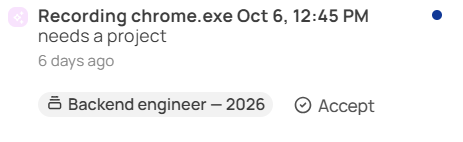
The notification that a recording needs a project
When transcription fails
The recording says so where its transcript would be: Transcription failed, and a line under it saying why. If you can edit the recording, Try again is there too. Jinn also puts a notification in the inbox of whoever made the recording, with its own Try again. Either button does the same thing, and a retry carries on from the pieces already transcribed.
A transcript that came out with a stretch missing hasn’t failed — see
gaps in the transcript.
When an agent fails
A failed agent gets a red warning mark in the row of agents, and the recording says Insight generation failed where its summary would be.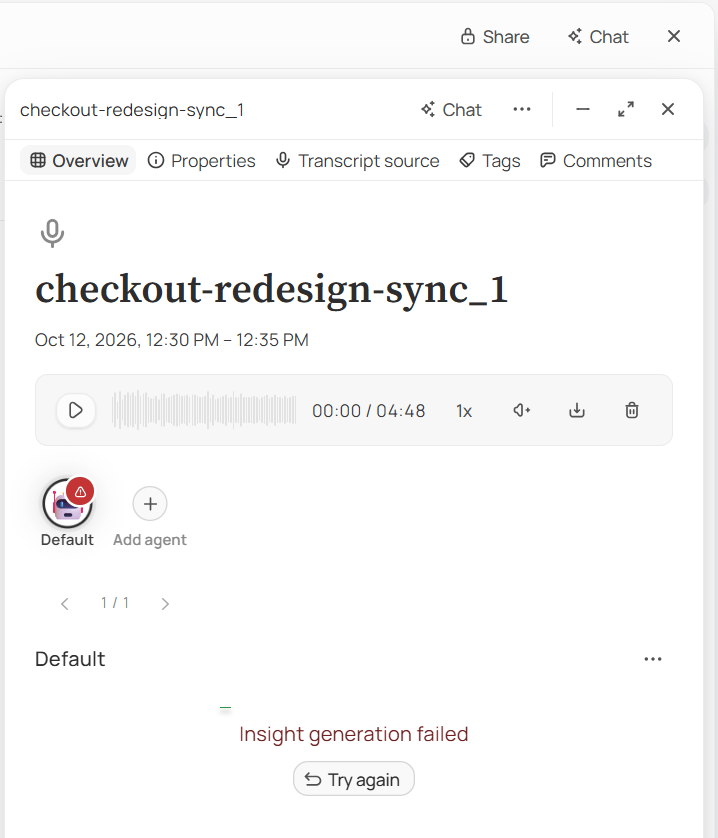
Default couldn't write up the meeting
Check your inbox
Both of these live in your inbox, and the inbox is per workspace — what’s waiting in one workspace doesn’t show up in another. You can mark things read, archive them, or clear the lot with Mark all as read and Archive all. Notifications about a recording resolve themselves once the thing they’re about is sorted. Assign the project and the notification goes; the transcription succeeds on a retry and the failure notice becomes a success.Download the audio
Need the recording outside Jinn — to send to someone who wasn’t there, or to keep a copy of your own? Click Download recording on the recording’s player, or choose it from the ⋯ menu at the top of the recording’s page or on its row in a Recordings list. The file is named after the meeting. Anyone who can open the recording can download it.What to do with it next
Once the transcript and the agents’ write-ups are there, the meeting is yours to work on. What you do with it while you still remember the room decides whether it’s any use later — see the five minutes afterwards. Every control on the recording’s page is in reviewing a meeting.Where to go next
Upload a recording
Turn an audio or video file you already have into a meeting.
Put a meeting to work
The five minutes that decide whether a meeting is worth anything later.